
I don't want to translate, I want to read
Try reading Foreign language in your mind first. AI helps when you don't understand something.
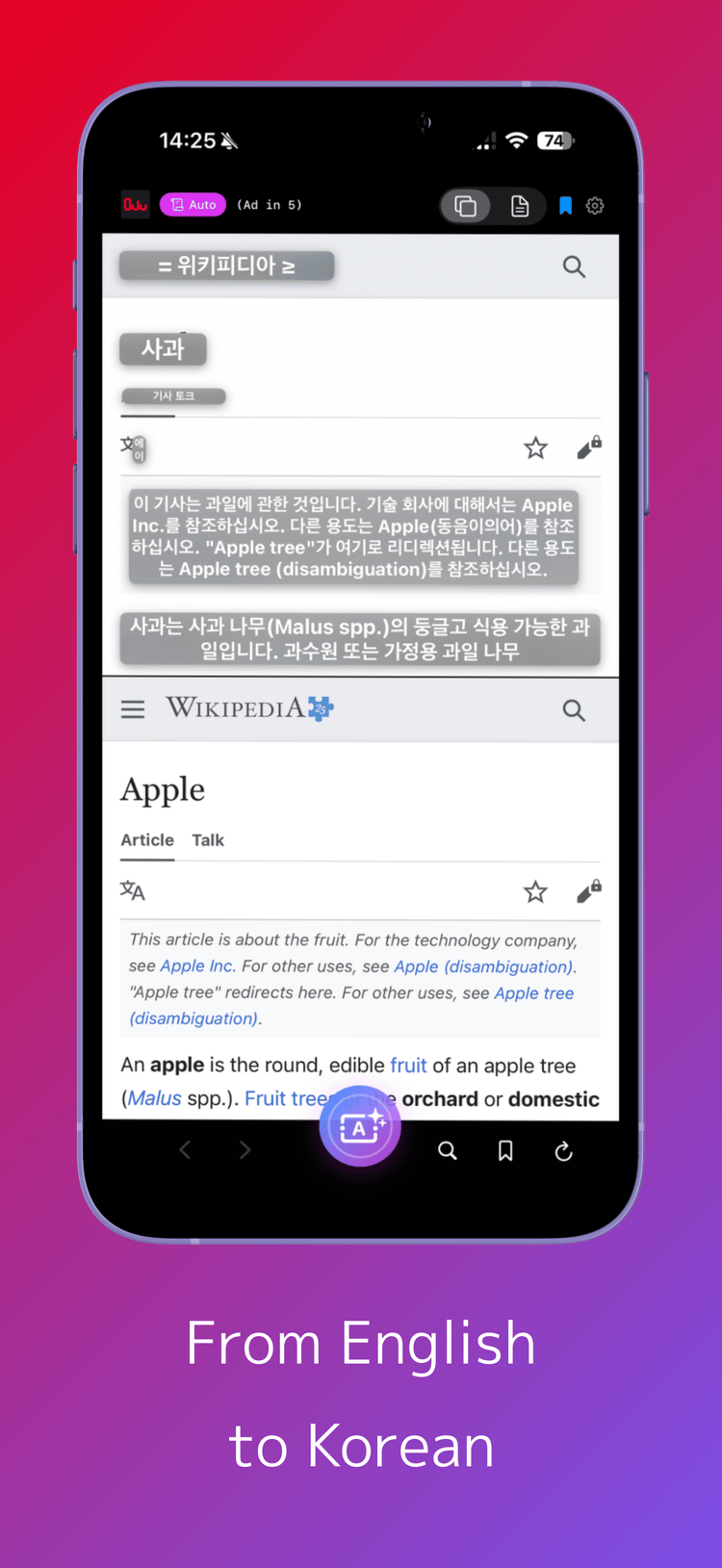
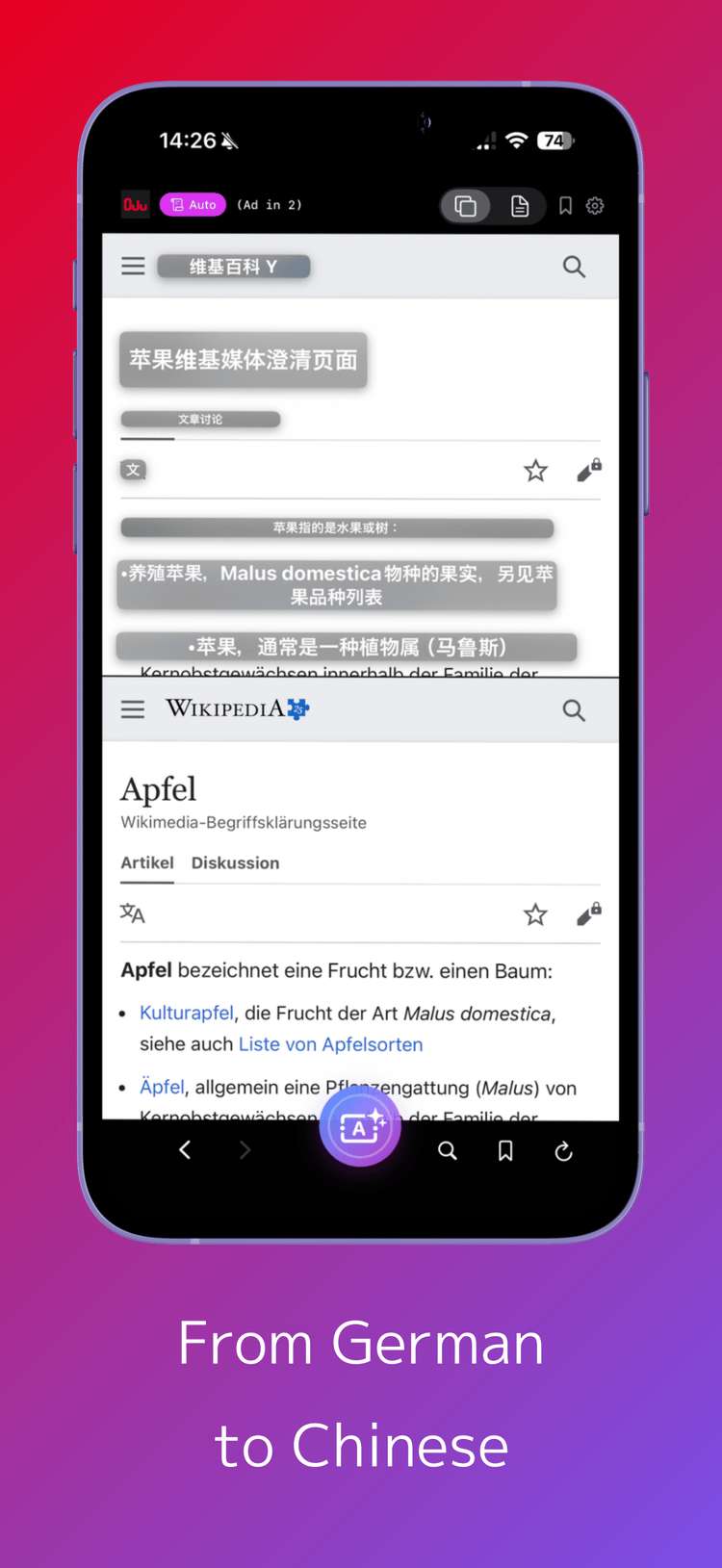
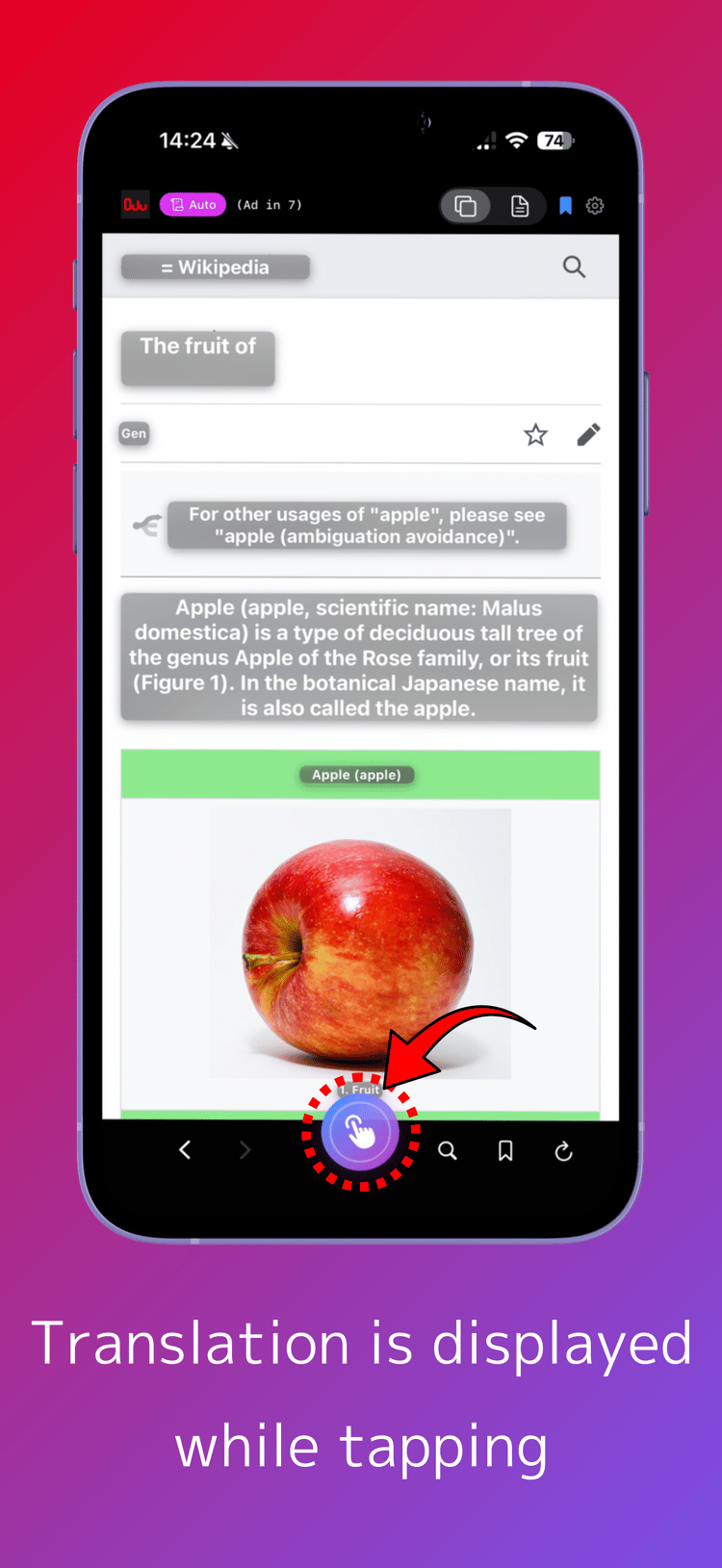
Instantly recognizes text on the screen and translates seamlessly.
Capture text from images and videos without interruption.
Powerfully supports your extensive reading and learning.
Turn 'can't read' into 'learn' right now.


Compatible with iPhone / iPad / Apple Silicon Mac
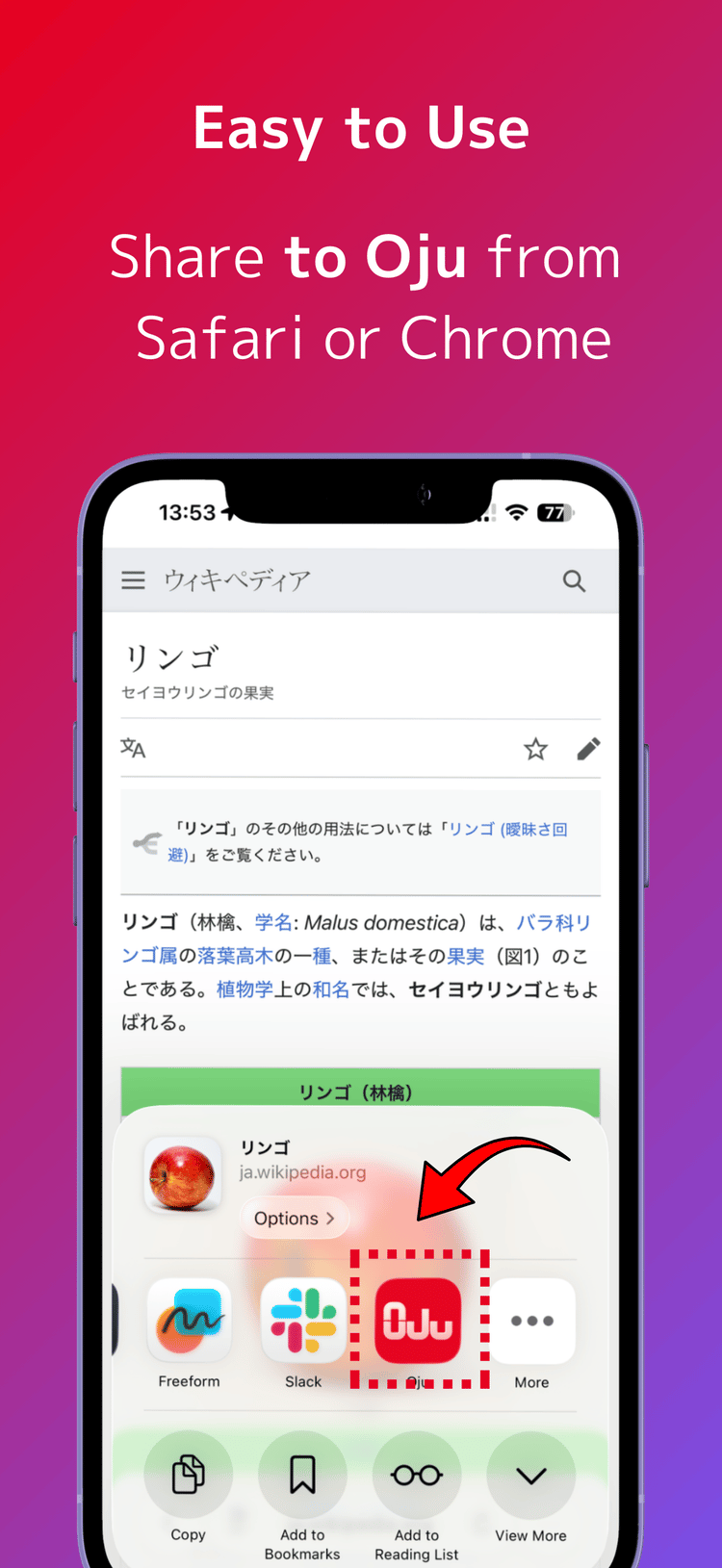
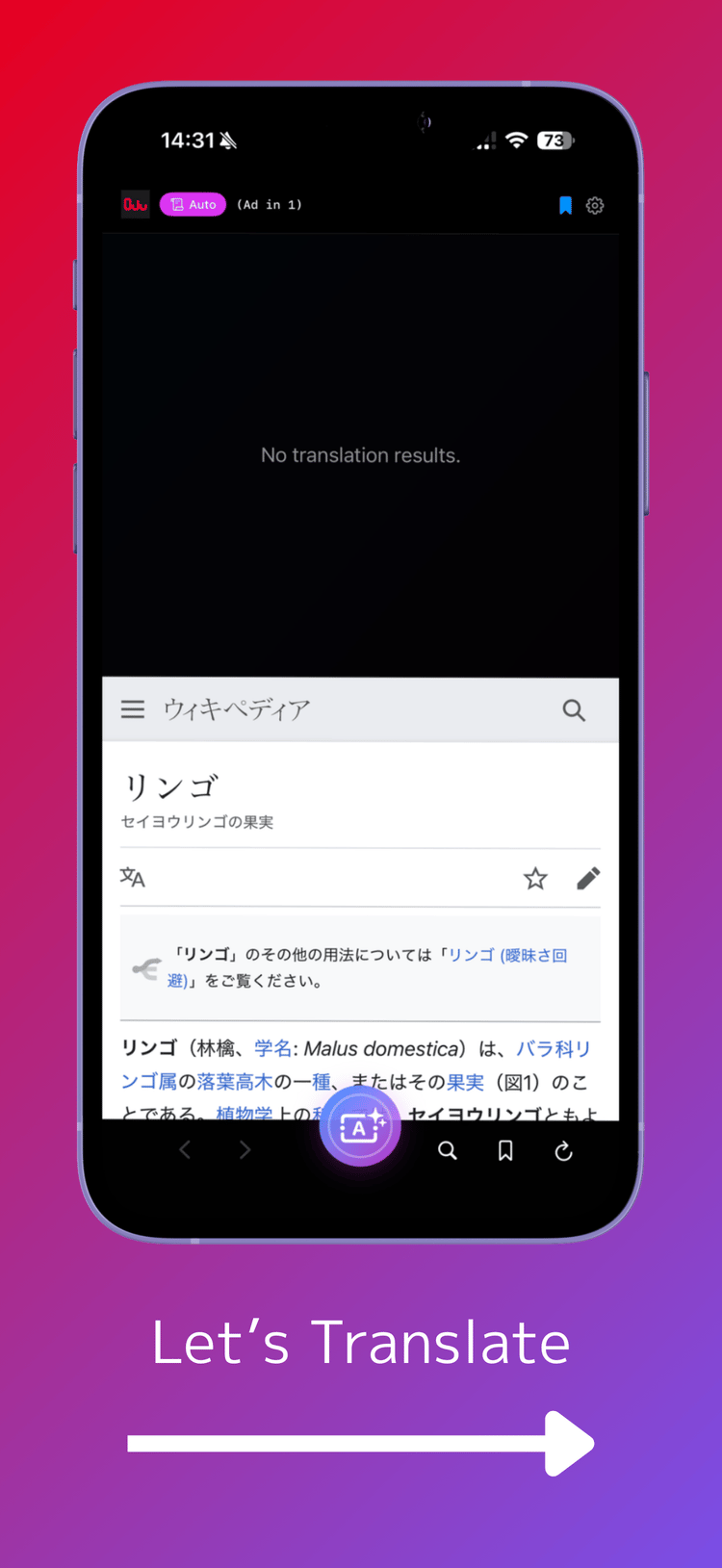
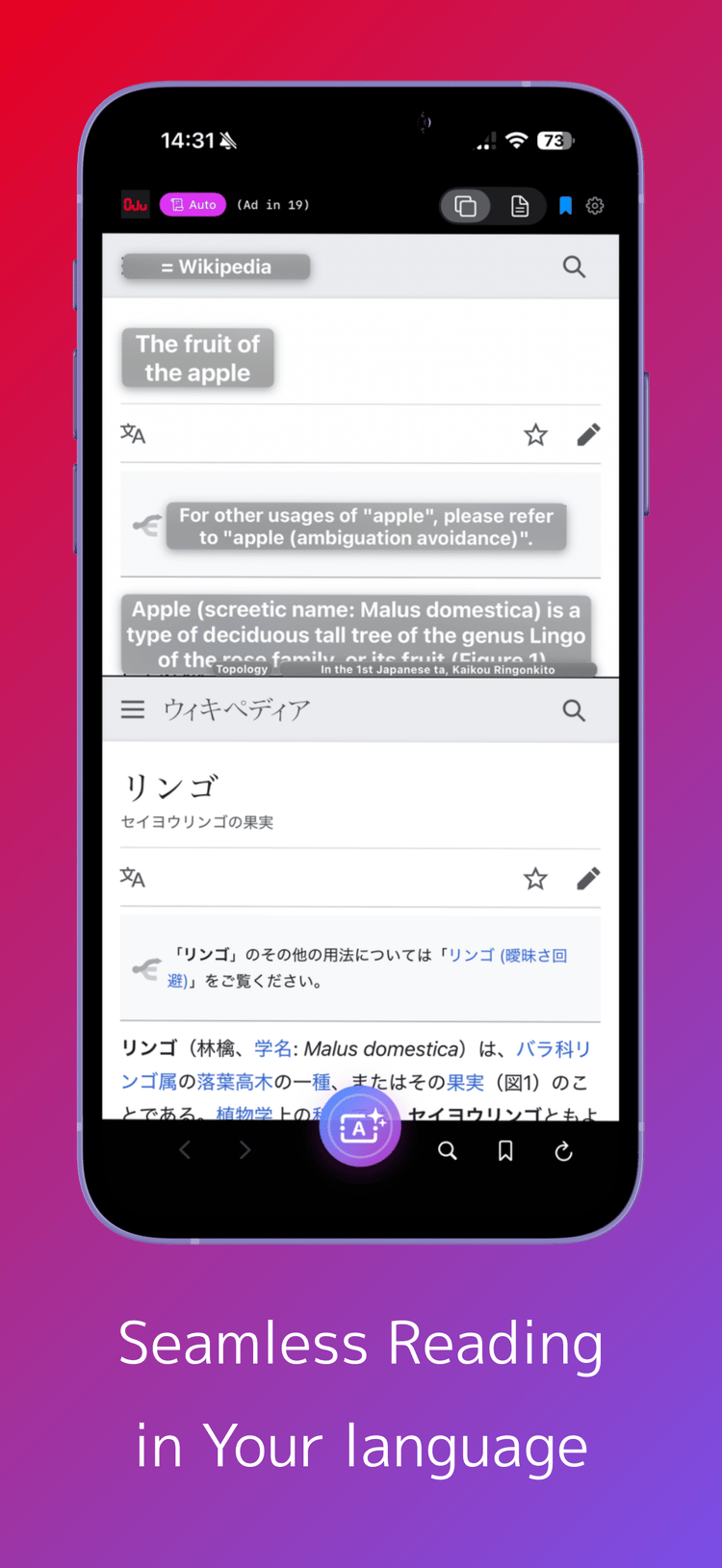
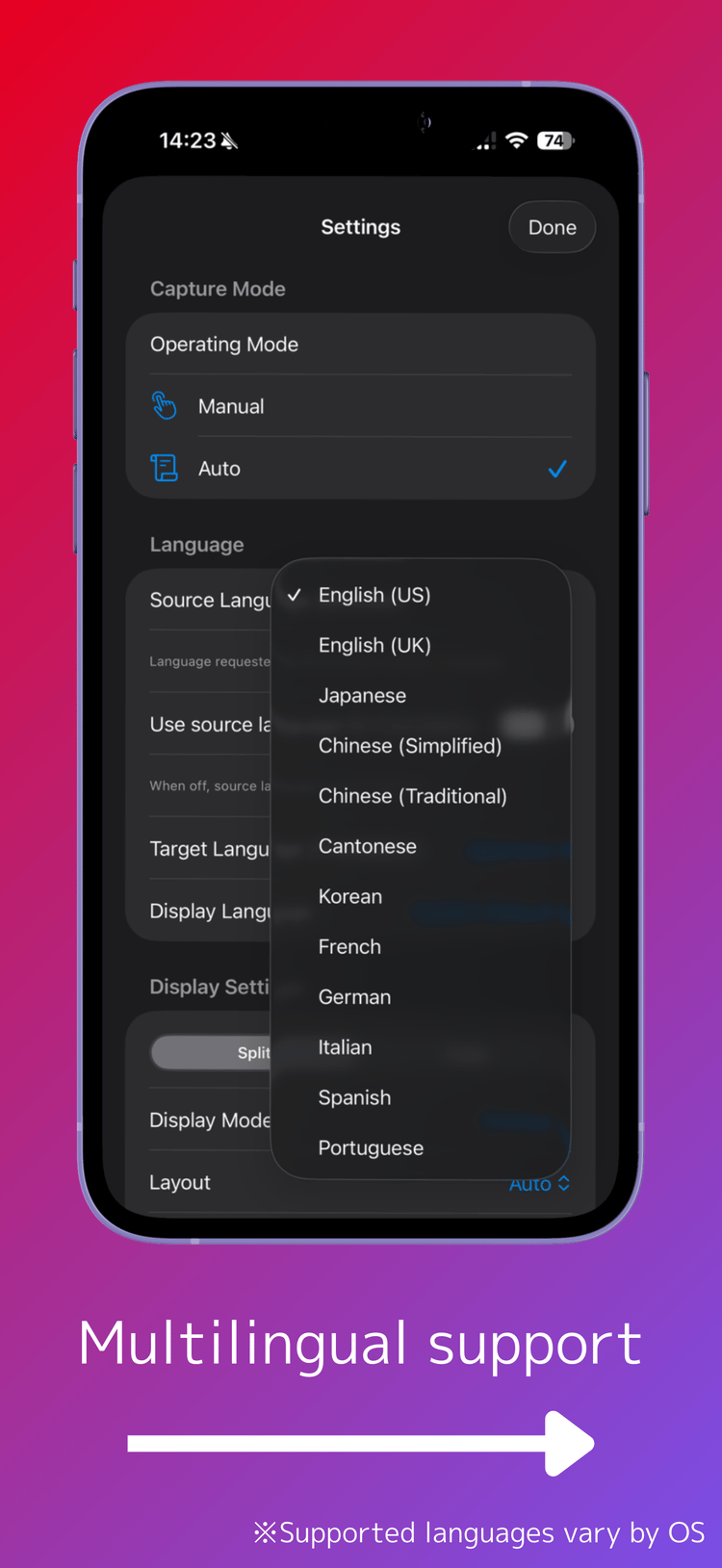
3 Core Features to Accelerate Foreign language Learning
Learn at the moment you notice
On-screen AI OCR & Instant Translation
Scan areas of interest while browsing. Save time by avoiding app switching and smoothly proceed with reading while maintaining context.
Don't Miss Text in Images or Videos
Adopts iOS/macOS standard analysis engine. Accurately extracts text from social media posts that can't be copied, subtitles in videos, and PDF documents.
※ Some content, such as copyrighted material, cannot be extracted
Multilingual Support for 20+ Languages
Supports the latest language engines supported by the OS, including English, Chinese, and Korean. Always provides accurate translation and recognition.
※ Supported languages may vary by OS version
Even Better on Large-Screen Devices
Optimal display modes for iPad / Mac and iPhone
iPad / Mac
Make the most of the wide screen for deep learning by displaying the original text and translation side by side.
iPhone
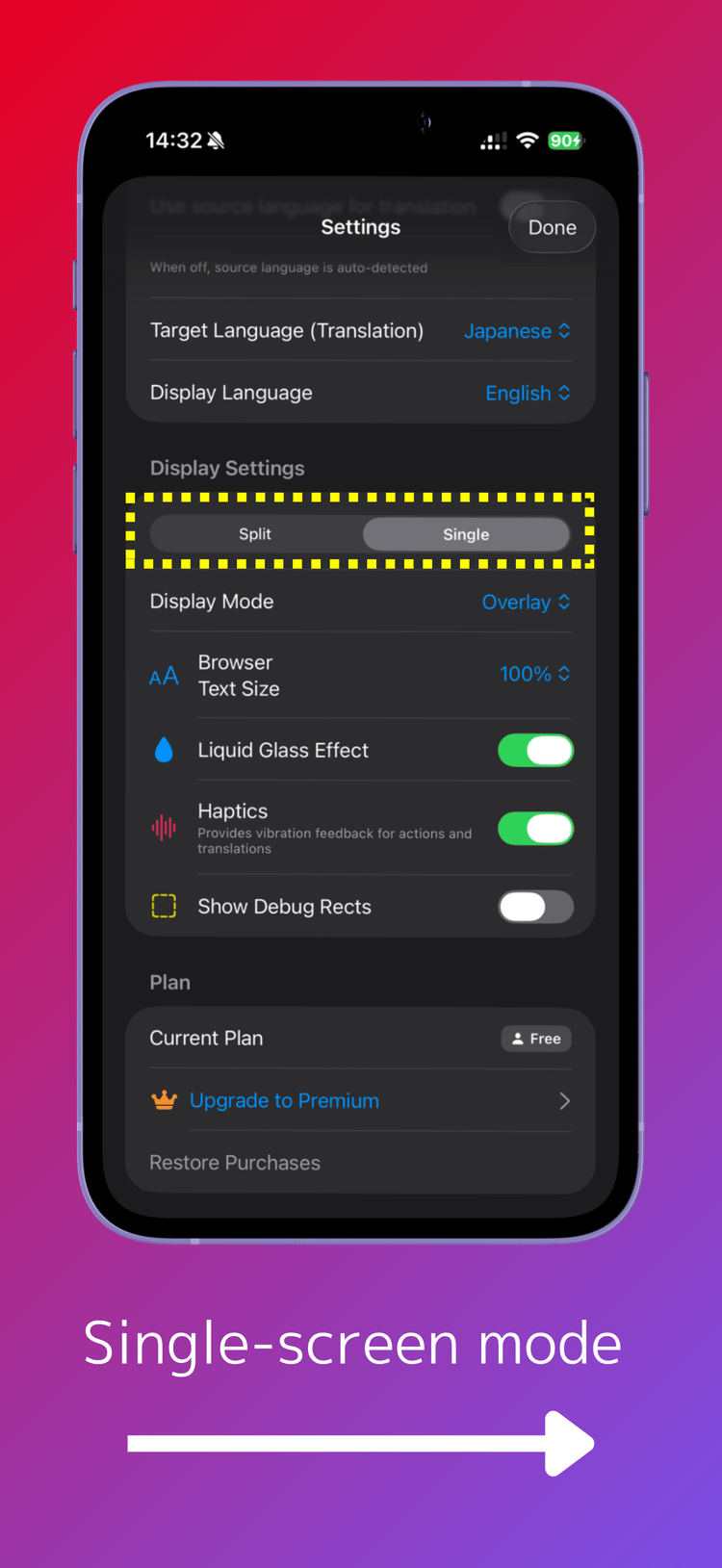
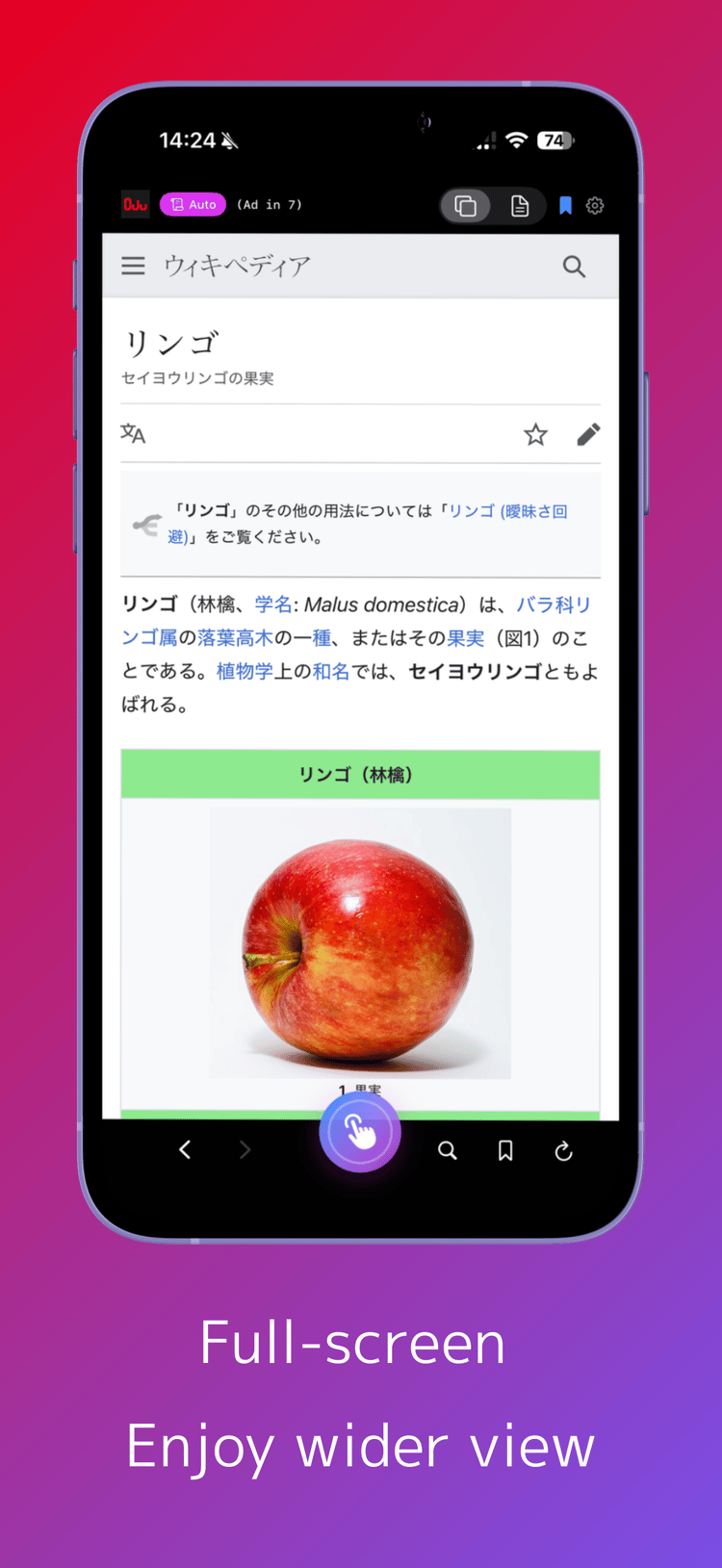
Single display mode (non-split mode) is recommended due to screen size constraints.
Frequently Asked Questions
Questions about usage and specifications
For iPhone, what settings do you recommend?
For iPhone, I recommend setting 'Translation: Auto' and 'Screen: Non-split' in the top-right settings. This keeps the screen simpler, wider, and easier to use.
What about iPad or macOS?
For iPad or macOS, split mode is also comfortable due to the larger screen. You can take full advantage of the wide screen to read the original text and translation side by side.
How often are ads displayed?
Ads are displayed approximately once every 30 translations. To avoid frequent display, ads appear only after 3 minutes have passed since the last one. This specification may be changed without notice.
How do you pronounce 'Oju'?
Oju is pronounced 'O-joo'. It comes from '重箱' (ojuu), which refers to stacked or divided layers.
Recommended for
Those who want to efficiently read the latest news and technical articles in foreign languages
Instant translation allows you to get information quickly without the hassle of looking up words in a dictionary.
Those who want to learn 'authentic expressions' from social media and videos
Accurately recognize text in images and videos to learn native expressions.
Those who want to enter a reading flow state without being disturbed by 'looking up'
No app switching required, so you can maintain your focus while reading.
Support
If you have any questions or concerns, please feel free to contact us.
info [at] anotherbrain.co.jp